Call Us
AI TRACKING
● REC 00:14:32
- Mon - Fri 10:00 - 18:00, Sat 10:00 - 15:00, Sunday - CLOSED
- Email: sales@israintech.com

-
-


WhatsApp
+92 321 1114772
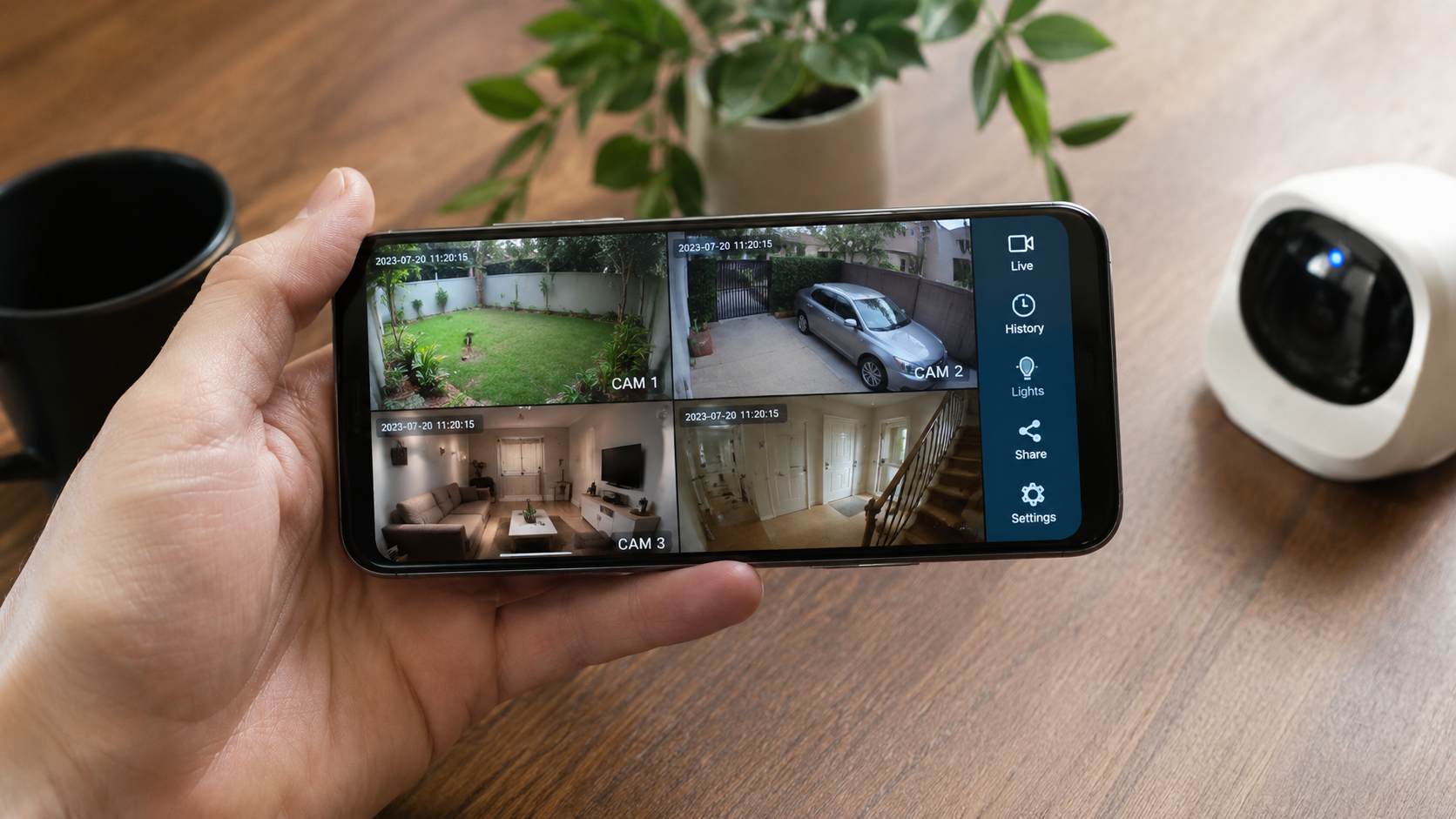
You installed a CCTV camera for one reason: to check on your home, shop, or office whenever you want, from wherever you are. But the box it came in rarely explains how to actually get that live feed onto your phone. If you’re staring at a camera blinking on your wall, wondering why your phone still can’t see anything, this guide walks you through exactly how to access a CCTV camera on mobile.
Whether you’re running a Hikvision DVR, a Dahua NVR, or a plug-and-play WiFi camera using iCSee or V380, the underlying process is nearly identical. Let’s break it down.
The 4 Things You Need Before You Start
Before touching any app, confirm you have these basics ready; they solve 90% of connection failures before they even happen.
| Requirement | Why It Matters |
| A working internet connection at the camera’s location | The camera needs internet access to send its feed to your phone remotely |
| Your phone connected to a 2.4GHz WiFi network (for setup) | Most budget WiFi cameras only support 2.4GHz, not 5GHz, during initial pairing |
| The camera’s serial number, UID, or QR code | Found on the camera body, box, or settings menu—used to “pair” the camera with the app |
| The correct manufacturer app installed | Each brand uses its own app; a Hikvision camera won’t pair with the Dahua app |
Step-by-Step Guide to Accessing CCTV Camera on Mobile
Step 1: Identify Your Camera Brand and Download the Right App
This is the step most people skip, and it’s the one that causes the most confusion. Every CCTV brand ships with its own dedicated mobile app, and they are not interchangeable. Check the box, the sticker on the camera body, or the quick-start manual to confirm which one you need.
| Camera Brand | Mobile App | Platform |
| Hikvision | Hik-Connect | Android / iOS |
| Dahua | gDMSS Plus / DMSS | Android / iOS |
| iCSee-based cameras | iCSee | Android / iOS |
| V380-based cameras | V380 Pro | Android / iOS |
| EZVIZ / IMOU cameras | EZVIZ / IMOU Life | Android / iOS |
| TP-Link Tapo cameras | Tapo | Android / iOS |
Download the correct app from the Google Play Store or Apple App Store and install it before doing anything else.
Step 2: Create Your Account
Open the app and register using your email address or phone number. You’ll typically receive a verification code by email or SMS — enter it to confirm your account. This account is what lets you (and anyone you choose to share access with) log in and view the camera from any phone, on any network, anywhere in the world.
Step 3: Add Your Camera to the App
This is where the actual “connection” happens. The exact wording differs slightly by app, but the process follows the same pattern everywhere:
- Open the app and tap the “+” or “Add Device” button.
- Choose your device type — usually “WiFi Camera,” “IP Camera,” or “NVR/DVR,” depending on what you own.
- Power on the camera and wait for it to finish initializing. Most cameras give a voice prompt like “waiting for network” or a beep once ready.
- Scan the QR code printed on the camera, its box, or displayed in its settings menu. If there’s no QR code available, you can manually enter the camera’s serial number or UID instead.
- Enter your WiFi name and password when prompted. Double-check you’re connecting it to a 2.4GHz network — this is the single most common reason setup fails.
- Wait for the confirmation sound or on-screen message confirming the camera has connected successfully.
- Name your device (e.g., “Front Gate” or “Shop Counter”) and finish setup.
8. Within a few seconds, your live feed should appear directly inside the app.
Connecting a DVR/NVR-Based CCTV System
If your CCTV setup uses a DVR or NVR (common for wired, multi-camera systems in homes, shops, and offices), the process is slightly different from a single WiFi camera:
- Open your brand’s app (Hik-Connect, DMSS, etc.) and tap “Add Device.”
- Select “Manual Add” or scan the QR code displayed on your DVR/NVR’s monitor output or settings screen.
- Enter the device’s serial number, username, and password (the default login is usually printed on a sticker on the DVR/NVR itself — change this immediately after setup for security).
- Once added, the app pulls in all connected camera channels automatically, letting you switch between them or view them in a grid on one screen.
The advantage of a DVR/NVR system is that a single app login gives you access to every camera on the property, rather than adding each one separately.
Local Network View vs. Remote (Cloud) View
There are two distinct ways your phone can access a CCTV camera, and understanding the difference helps you troubleshoot faster:
| Access Type | How It Works | Best For |
| Local (LAN) View | Phone and camera are on the same WiFi network; the app connects directly | Fast, low-latency viewing at home with no internet dependency |
| Remote (P2P/Cloud) View | Camera pushes its feed through the manufacturer’s cloud servers using its UID | Checking your camera from anywhere — office, another city, or abroad |
Most modern apps handle the switch between these two automatically using P2P (peer-to-peer) technology, meaning you don’t need to manually configure port forwarding on your router the way older systems required. If your camera is older or lacks P2P support, you may need to enable port forwarding on your router and use the camera’s public IP address to view it remotely, a step best handled by your installer if you’re not comfortable with router settings.
Sharing Access With Family or Staff
Most CCTV apps let you share live-view access without handing out your main login credentials:
- Open the device settings inside the app and look for “Share Device” or “Device Sharing Permission.”
- Choose which features to share (live view only, playback, alerts, etc.).
- Generate a sharing QR code or invitation link.
- The other person scans it using their own app account, and the camera appears on their phone too without ever knowing your password.
This is especially useful for shop owners who want staff to monitor entrances without full admin access, or families sharing a home camera across multiple phones.
Common Connection Problems and Quick Fixes
| Problem | Likely Cause | Fix |
| Camera won’t connect during setup | Phone is on a 5GHz WiFi network | Switch your phone to the 2.4GHz network before pairing |
| “Device Offline” showing in the app | Camera lost internet or power | Check the camera’s power supply and router connection |
| QR code won’t scan | Poor lighting, wrong distance, dirty lens | Hold the phone 4–8 inches from the lens in good lighting |
| App shows local view but not remote view | P2P/cloud service not enabled, or blocked by firewall | Check the device’s cloud/P2P setting is switched on |
| Forgotten device password | Default password wasn’t changed or was lost | Use the app’s password reset option or perform a factory reset on the camera |
Security Tips Once You’re Connected
Getting your camera on your phone is only half the job; keeping that access secure matters just as much:
- Change the default password immediately after setup. Many break-ins into CCTV systems happen because installers or owners never changed factory-default logins.
- Enable two-factor verification in the app if your brand supports it.
- Avoid sharing your main account password — use the app’s built-in device-sharing feature instead.
- Keep your app updated to the latest version to receive security patches from the manufacturer.
Still Can’t Get Your Camera on Your Phone?
Every brand has small quirks in its app interface, but the fundamentals- correct app, correct WiFi band, correct QR code or credentials- solve the vast majority of setup issues. If you’ve followed these steps and your camera still won’t show up on your phone, the issue is usually either a hardware fault, a router configuration blocking the connection, or an outdated firmware version that needs updating.
Israintech’s technicians install and configure CCTV systems across homes, shops, and offices, and we set up mobile access as part of every installation, so you walk away with the app already working on your phone before we leave. If you’re stuck on a setup or need a professional CCTV installation done right the first time, reach out to our team for support.
Frequently Asked Questions
Can I view my CCTV camera on my phone without internet?
Yes, if your phone and camera are on the same local WiFi network, you can view the feed without an internet connection using local (LAN) view. Remote viewing from outside the network requires internet on both ends.
Why does my CCTV app only work on WiFi and not on mobile data?
This usually means remote/P2P viewing isn’t enabled, or your router is blocking the connection. Check your camera’s cloud settings and confirm the device shows “online” status in the app.
Can multiple people view the same CCTV camera on their phones?
Yes. Use the app’s device-sharing feature to generate a QR code or invite link for additional users, without sharing your main account password.
Why does my camera only connect to 2.4GHz WiFi and not 5GHz?
Most budget and mid-range WiFi CCTV cameras use a WiFi chipset that only supports the 2.4GHz band, which has better range and wall penetration than 5GHz, even though it’s slower.
Is it safe to access my CCTV camera remotely from my phone?
Yes, as long as you change the default password, keep your app updated, and avoid connecting through unsecured public WiFi networks when checking your feed.
Leave A Comment